Setup Branding Before Creating Your Notes: Individual Notes are immediately PDF'd at the time they are Timestamped. The PDF branding of individual notes CANNOT be altered after they are created. Downloaded Notebooks are PDF'd at the time you decide to download them, so they will include the latest changes you make to your organizational branding.
Access the Branding Menu
To set up your organization's name, logo, or banner:
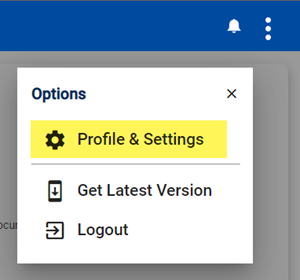
- Click the Main Menu on the top right corner of the screen
- Select Profile & Settings
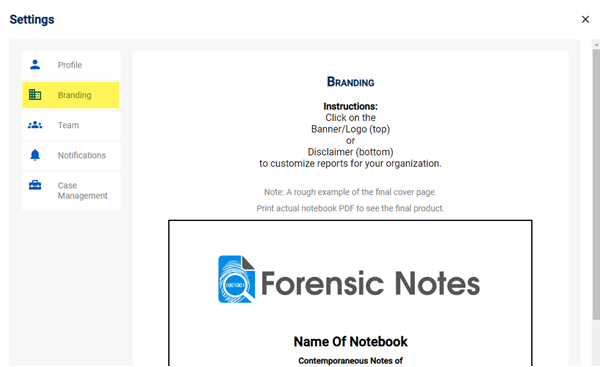
- Select Branding
Select the "Branding" tab.
Branding
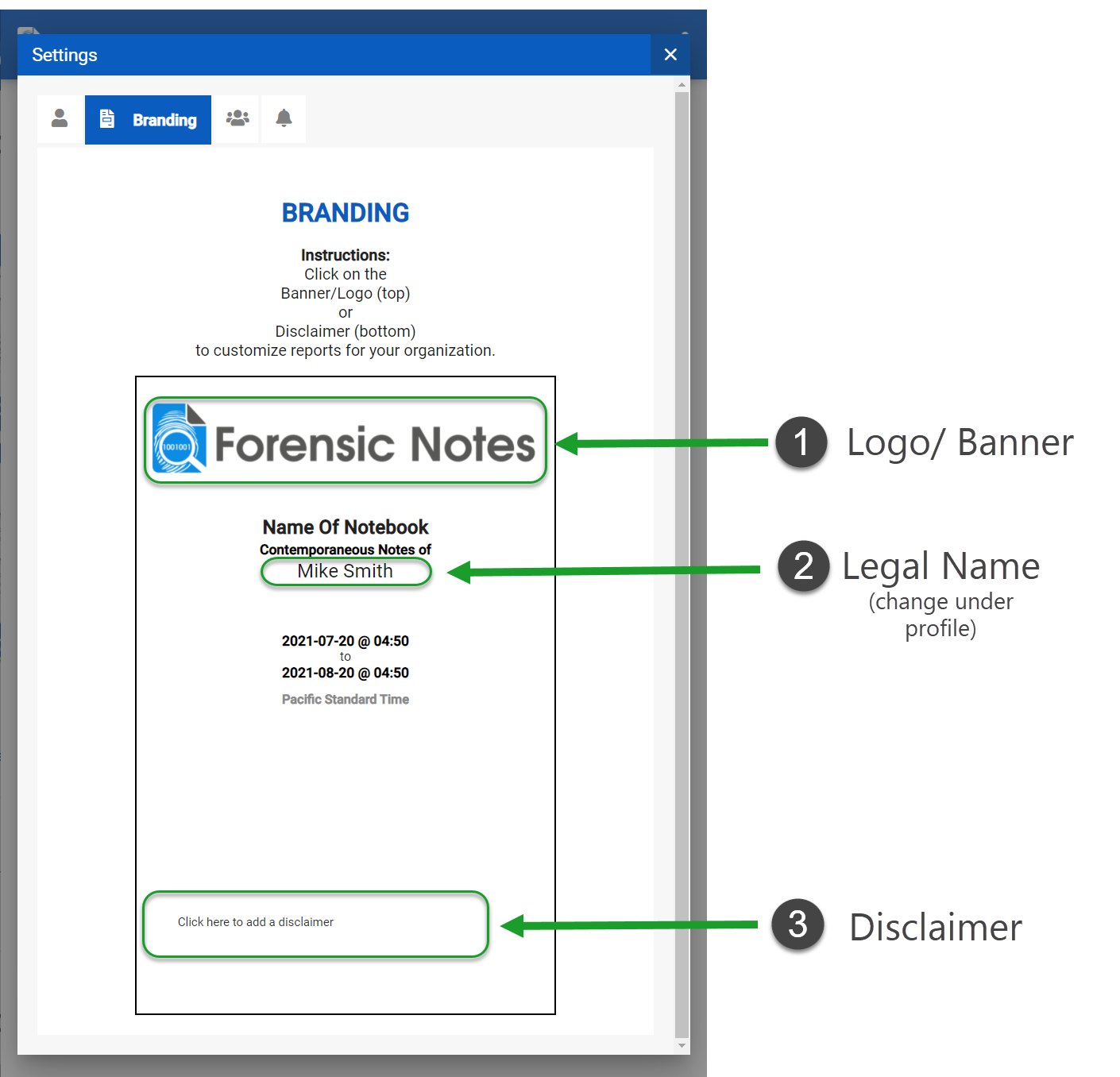
Under Branding you will see a sample cover page of your Forensic Notebook, showing how your current logo/banner and disclaimer look.
By default, the Forensic Notes banner will be used.
In App vs. PDF Notes
Branding & Disclaimers are only visible in the PDF format of your notes. When viewing notes within the Forensic Notes application, Branding & Disclaimers are not shown.
Logo / Banner
You have 3 options when it comes to the Logo / Banner that appears at the top of each page of your PDF reports:
- Forensic Notes Banner (Default): The default Forensic Notes banner will appear on your reports.
- Organization Logo: Upload a high resolution square image of your organization's logo. Maximum recommended size: 500 x 500 pixels.
- Organization Banner: Upload a high resolution rectangular banner image. Maximum recommended size: 2000 x 400 pixels.
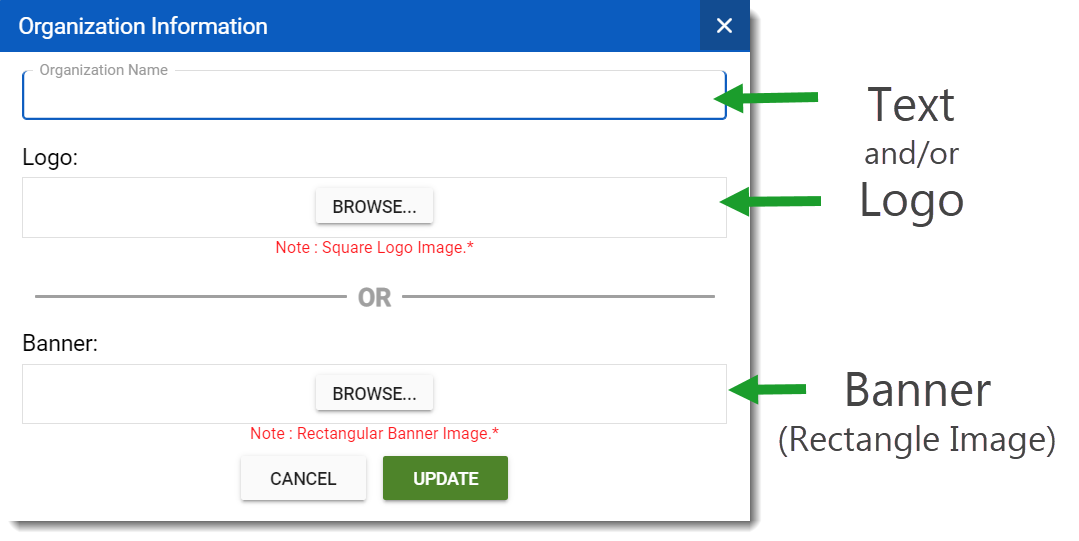
Example Logo
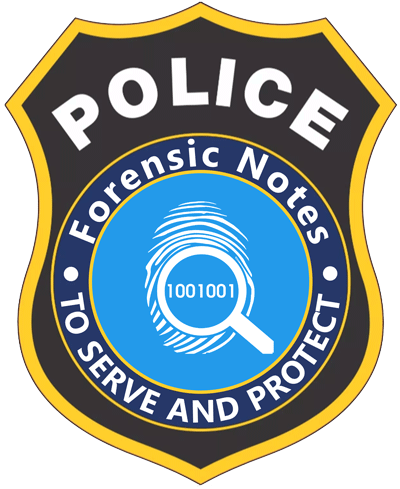
Example Banner
Notebook Name
By default, your Organization Name will be used when generating PDF reports. You can change this to any text you prefer (maximum of 40 characters recommended for best formatting).
Disclaimer
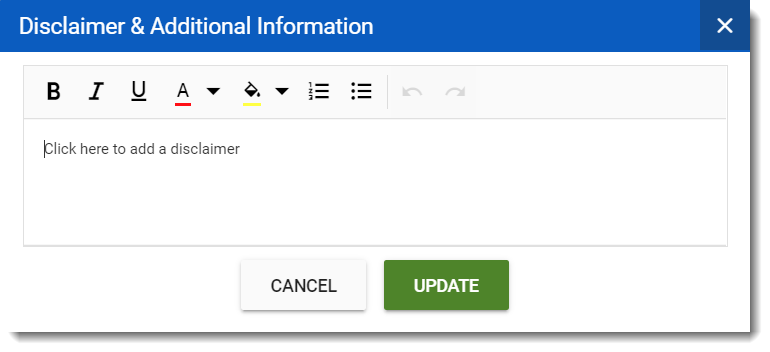
You can add a custom disclaimer that will appear on the cover page and footer of your PDF reports. This is useful for adding confidentiality notices, legal disclaimers, or other organizational messages.
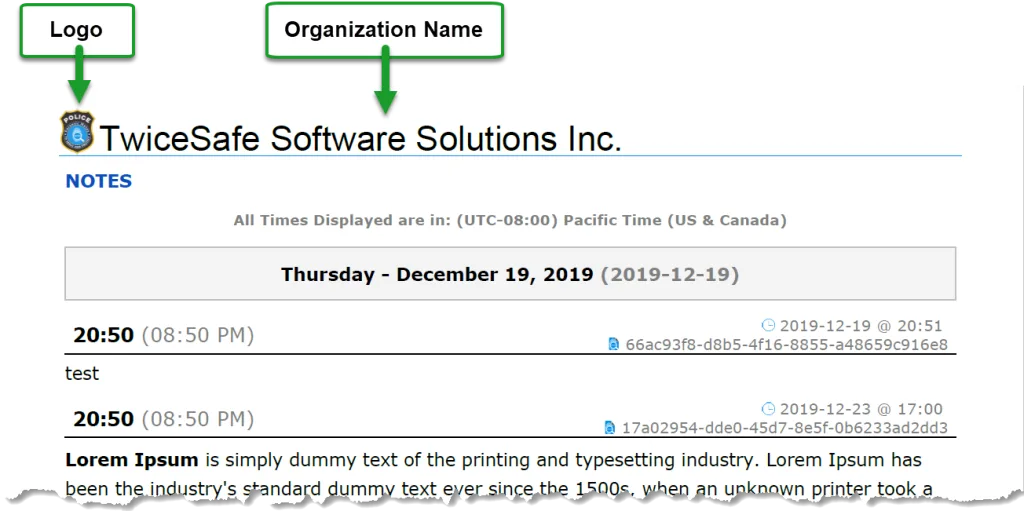
A Sample PDF Note with Branding
Here is an example of a page from a Notebook PDF with Branding Logo & Text added.