
Keep consistency across your notes - for both you and your organization.

Create Template
Templates can be created in any of the 3 editors, but for complex templates, you will want to use the Advanced editor.

Templates are created from the content in the editor.
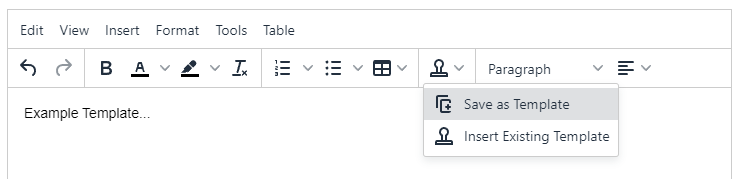
Keyboard Shortcut: Press ALT+C to save current content in the editor as a template.
Image Limit: Currently, a note can only have up to 10MB of images embedded. For scene photos, reduce the number of images if they are larger in size.
Add Existing Template
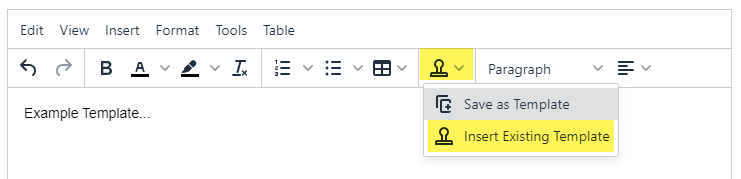
The Quick Menu within the editor allows for quick access to add an existing template.
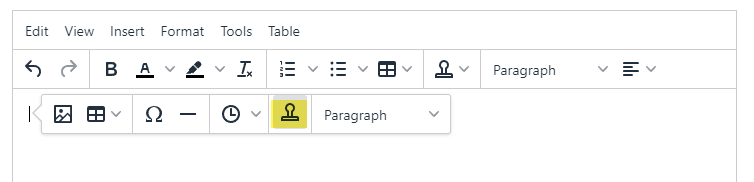
Keyboard Shortcut: Press ALT+T to open "Insert Template" dialog.
Select the template you want to insert either from the "Team" or "My" template section.
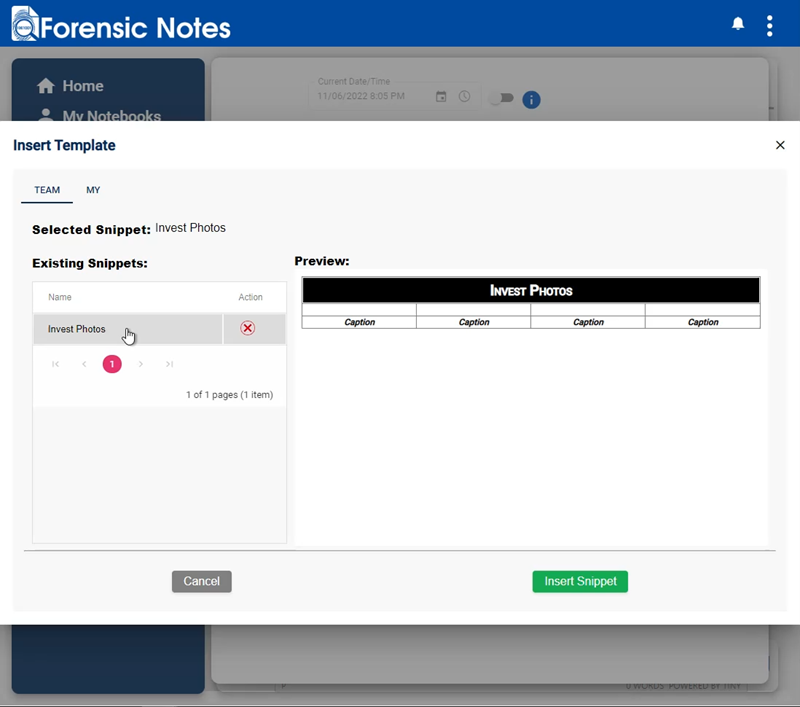
Add Template - Existing Content in Editor: Template content will be added to the end of the current note in the editor. This allows you to combine templates as needed within a single note.
Edit Template
If you want to edit a template, follow these steps:

Template Dialog Info & Options
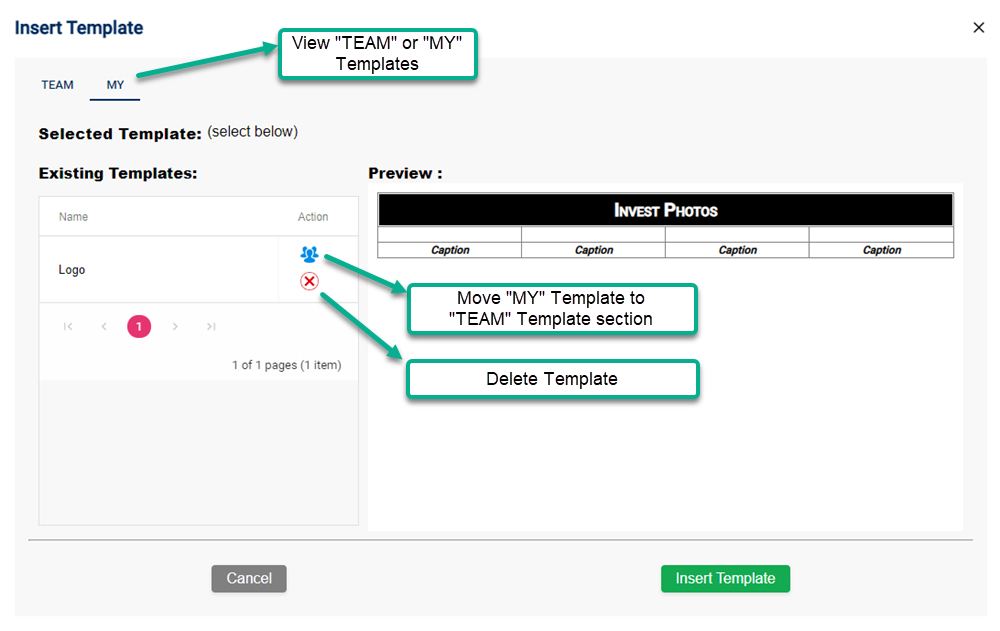
Move "MY" Template to "TEAM" Template section allows you to share your templates with the rest of your team.