Every Forensic Note and Forensic Notebook is Digitally Signed by a Digital Signing Certificate issued by GlobalSign, a Certificate Authority (CA). By default, Adobe Reader / Acrobat do not have knowledge of this certificate, which results in the warning "At least one signature has problems".
To properly validate your Forensic Notes and Forensic Notebooks, follow the steps outlined below. This will add the Digital Signing Certificate to your list of Trusted Certificates. These steps only need to be completed once on each computer viewing Forensic Notes and Notebooks.
Note: The following instructions are for Adobe Acrobat Reader DC. Other versions of Adobe Acrobat will have similar features and options.
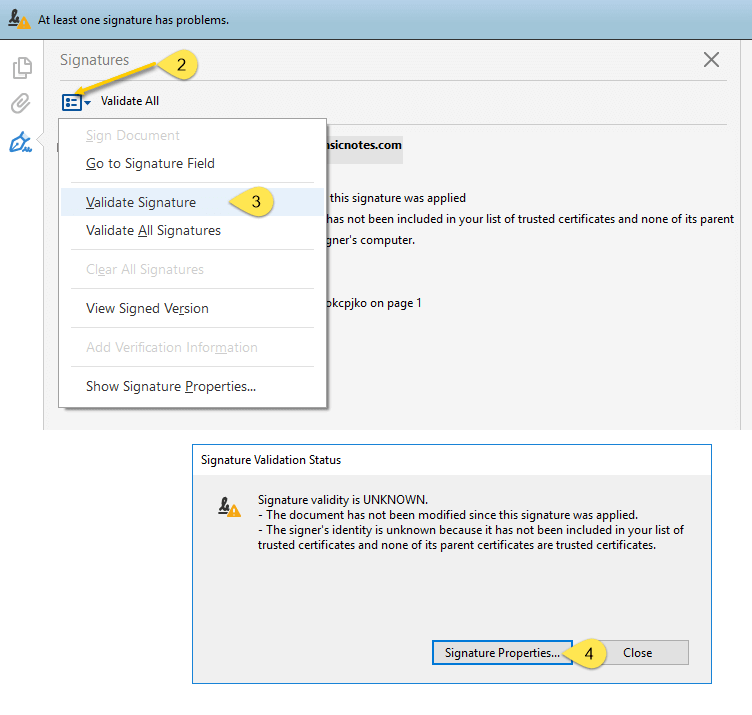
Step 1 - Signature Panel
- Click on "Signature Panel"
- Click the dropdown menu next to "Validate All"
- Click on "Validate Signature"
- Click the "Signature Properties..." button
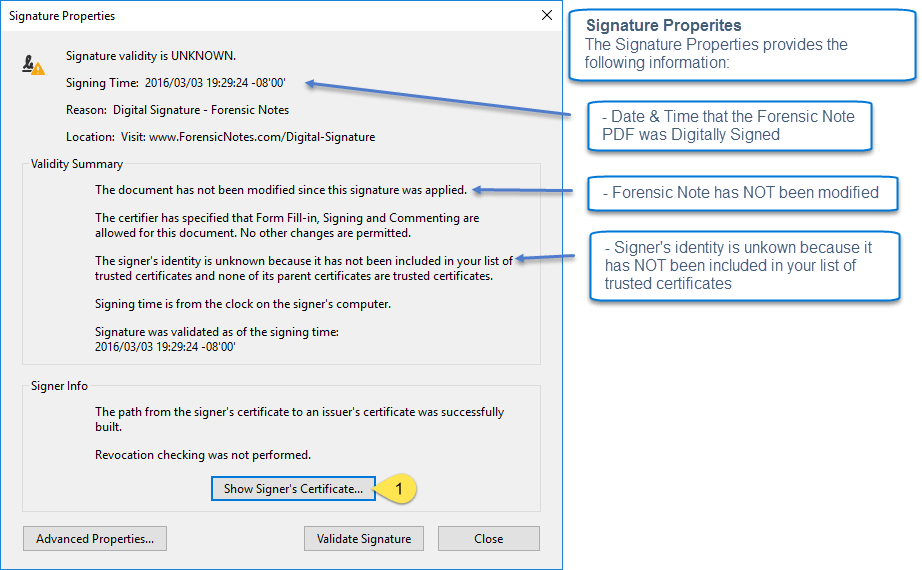
Step 2 - Signature Properties
The following menu shows the properties of the Digital Signature. As shown, the Forensic Note has not been modified since it was Digitally Signed.
- Click the "Show Signer's Certificate..." button
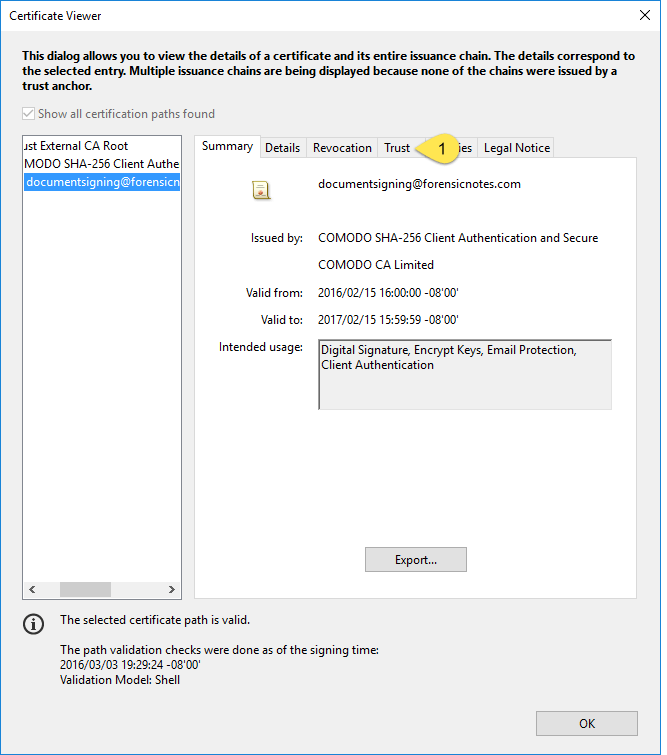
Step 3 - Certificate Viewer - Summary
The following menu shows further information related to the Digital Certificate.
- Click the "Trust" tab
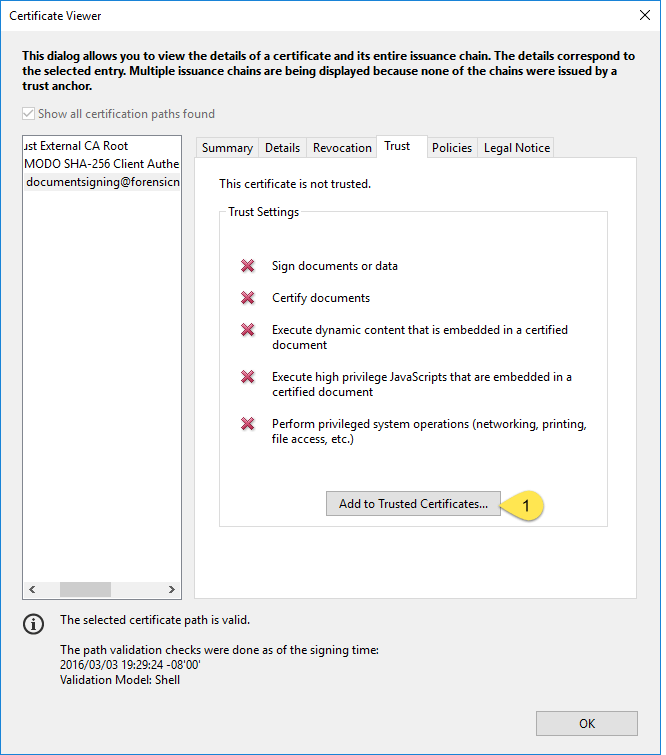
Step 4 - Certificate Viewer - Trust
The following menu shows that the associated Digital Certificate is not trusted.
- Click the "Add to Trusted Certificates..." button
Step 5 - Add Trust Settings
This menu allows you to set the Trust level for the Digital Certificate associated with Forensic Notes and Notebooks. To properly validate, you only need to ensure that the following two options are selected:
- Use this certificate as a trusted root
- Certified documents
- Click "OK" to save changes
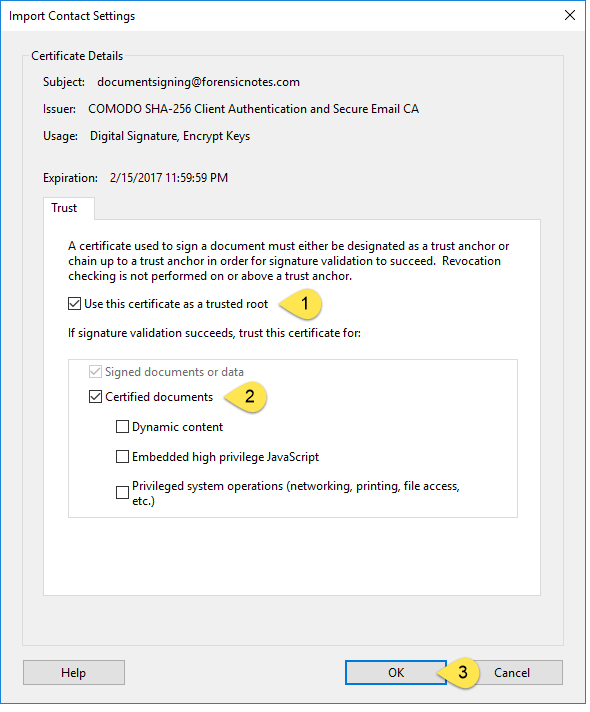
Security Note: Dynamic Content, Embedded high privilege JavaScript and Privileged system operation options do NOT need to be selected. These can cause potential security concerns in some environments and are not required for validating Forensic Notes.
Step 6 - Validate Signature
Now that the Digital Certificate is trusted within Adobe Reader/Acrobat, the Forensic Note or Notebook must be re-validated as it will continue to show errors until completed.
- Click on menu icon next to "Validate All"
- Click on "Validate Signature"
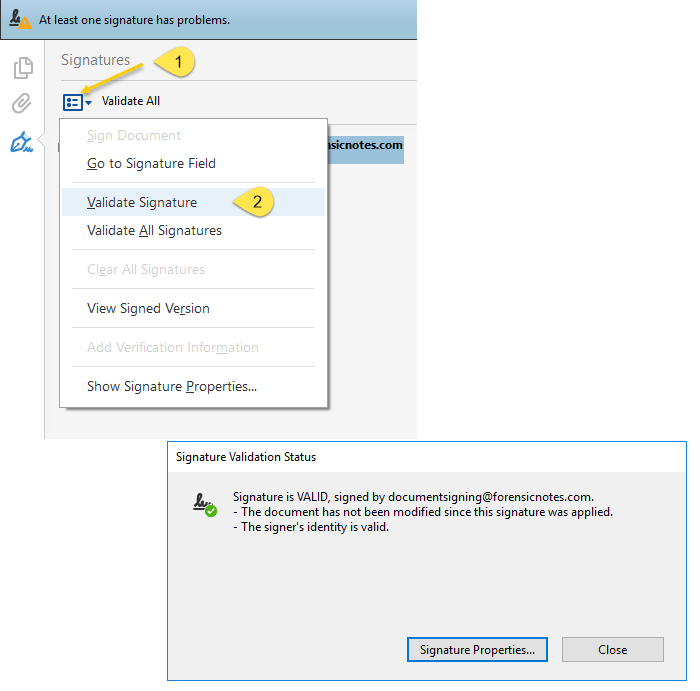
Step 7 - Valid Signature
The Signature Panel should now show the following message: "Signed and all signatures are valid"

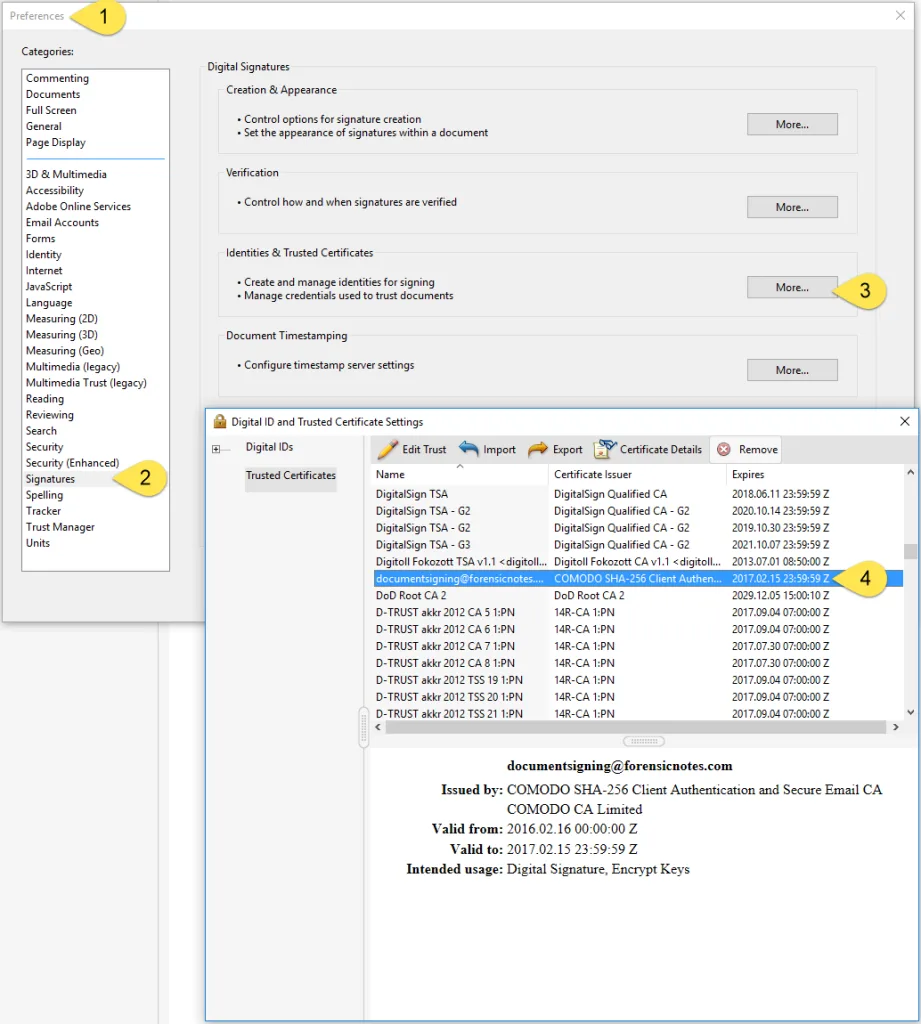
View List of Trusted Certificates - Adobe Reader
To view the list of Trusted Certificates within Adobe Reader:
- Click "Preferences..." within "Edit" menu
- Click "Signatures"
- Click "More..." button within "Identities & Trusted Certificates"
- View list of Trusted Certificates